User Manual
Authentication
All pages of application are protected and require user to be authenticated in order to access them. If you are not logged in and try to access any application page, you will be promted to provide your authentication credentials (email and password) that were created for your account.
Logging in
To log in to the application navigate to any page provided within your application domain (see company provided documentation), and if you are not already logged in, system will prompt you to provide your credentials.
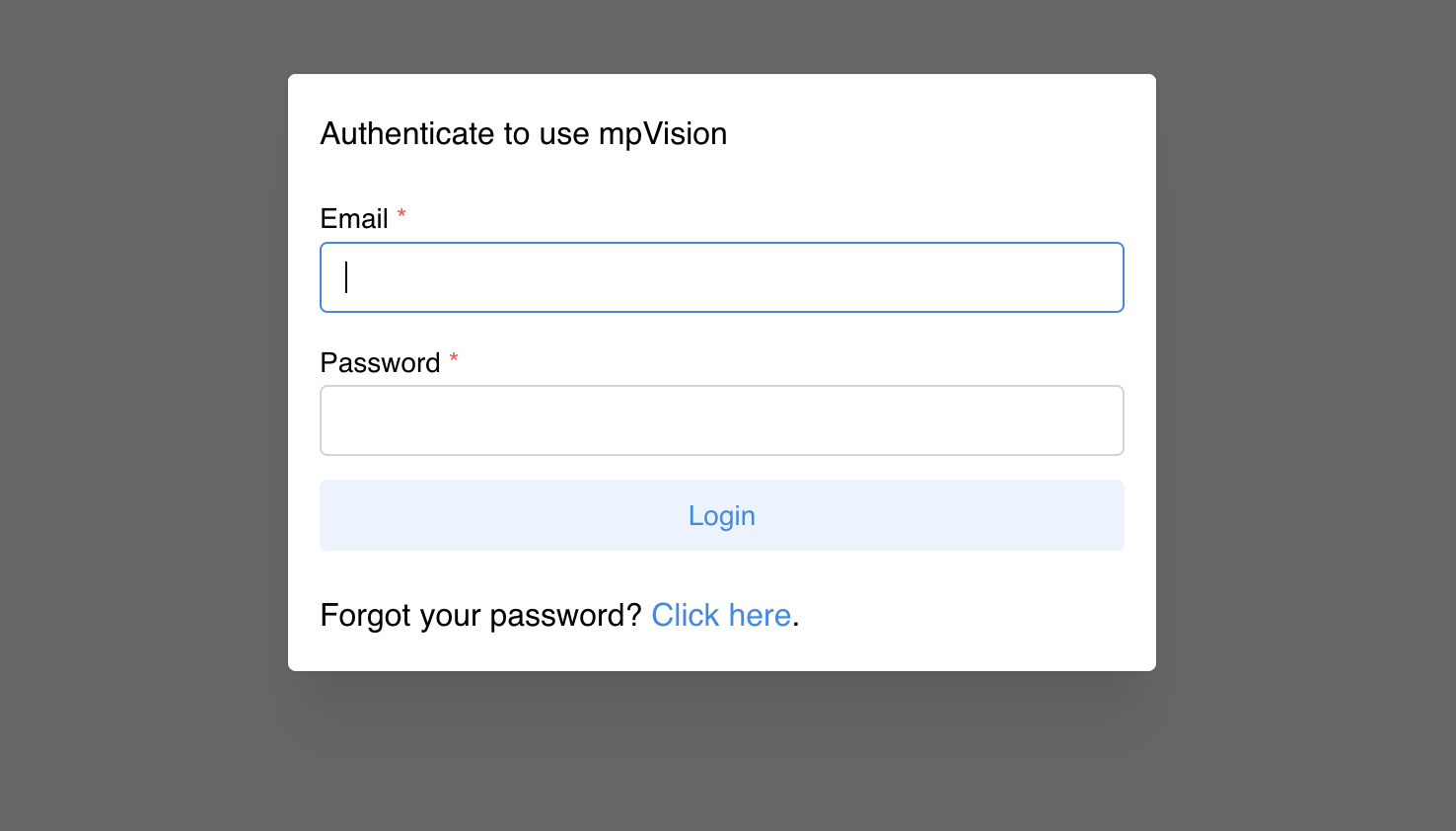
Input your email and password and click Login button. If your credentials are correct, you will be redirected to the page you were trying to access. If your credentials are incorrect, you will be prompted to provide them again with corresponding error message.
mpVision limits the number of failed login attempts to 5. If you exceed this number, you will be locked out of the system for 15 minutes and will see corresponding message. After 15 minutes, you can try to log in again. In case if you need immediate access to the system, you can reset your password by clicking "Forgot your password?" link on the login page and following the instructions.
Deactivated accounts
If your account is deactivated, you will not be able to log in to the system or reset your password. Only mpVision accounts with staff permission can reactivate your account.
Changing password
To change your password, navigate to your profile page by clicking on "My account" button in the top right corner of the application and selecting "Settings" from the dropdown menu.
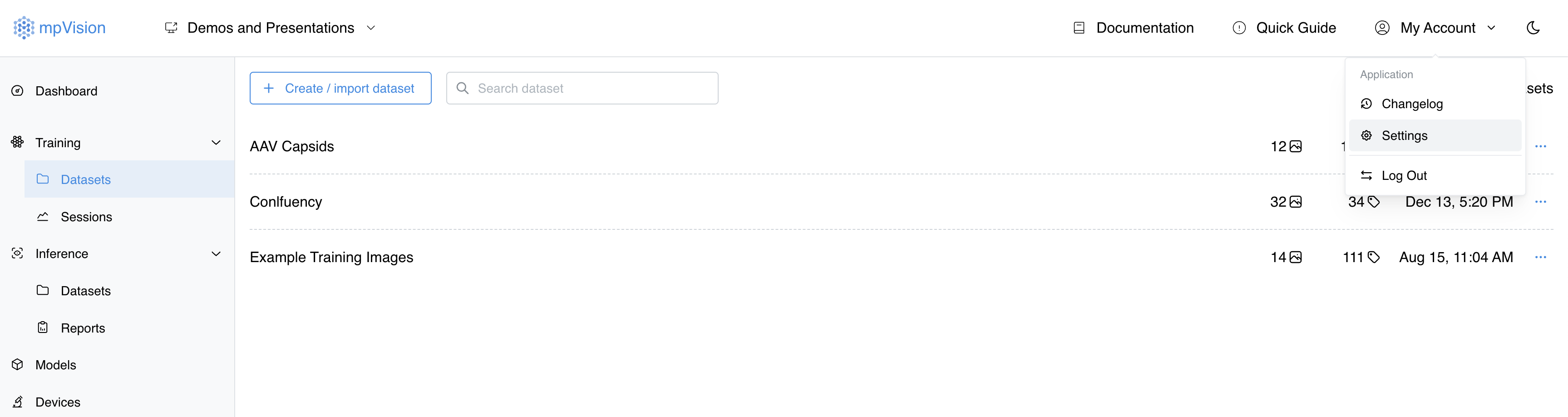
Click "Password" tab in the settings page to open password change form.
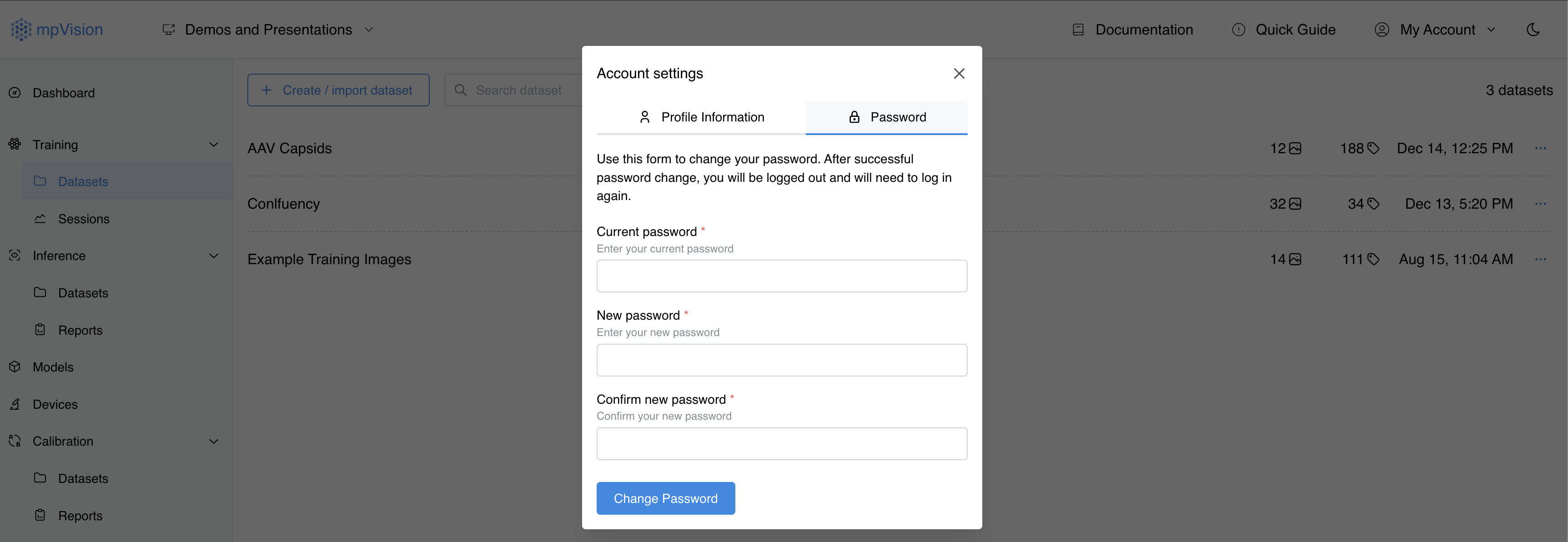
Input your current password, new password and confirm new password. Click "Change password" button to submit your changes. If your password is successfully changed, you will see success message message above "Change password" button.
Authentication is invalidated after password change
After you change your password, all other previously authenticated sessions in other browsers or devices will be invalidated, meaning that you will need to log in again on other browsers/devices with your new password.
Resetting password
If you forgot your password, you can reset it by clicking "Forgot your password?" link on the login page. You will be prompted to provide your email address and click "Submit request" button.
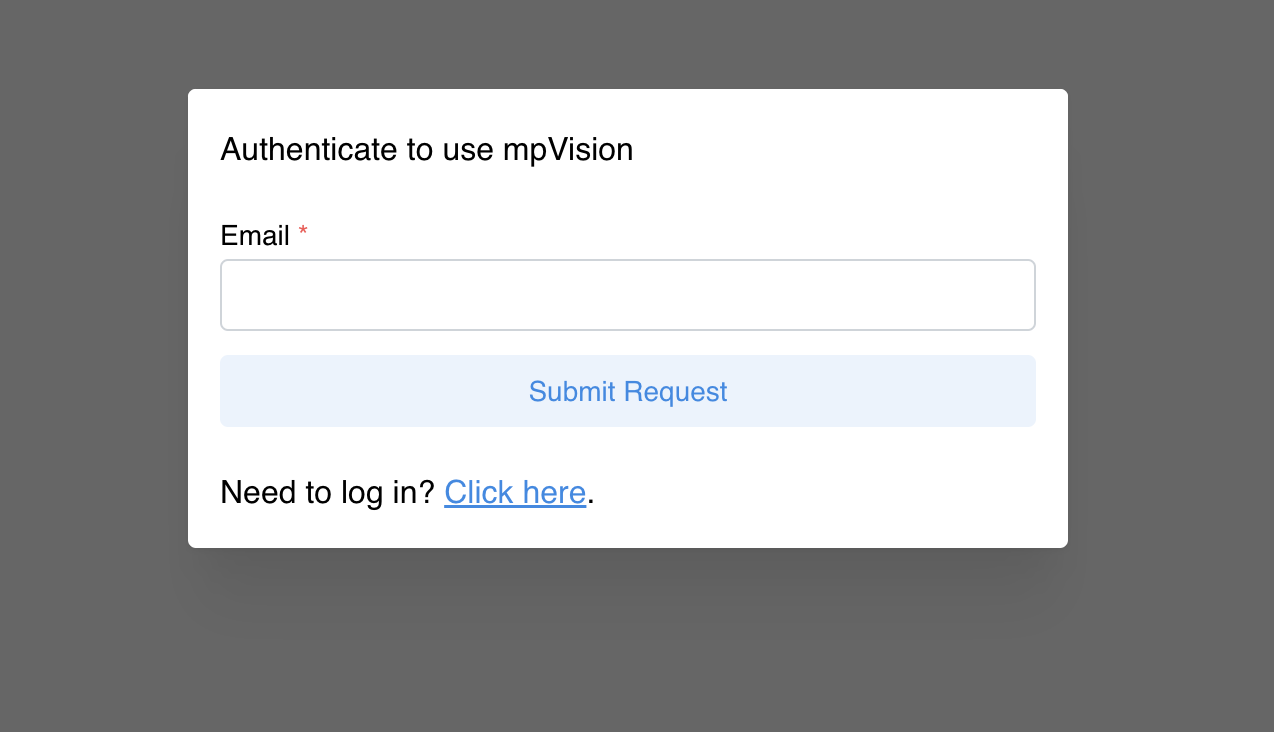
After you submit your request, you will receive an email with a link to reset your password.
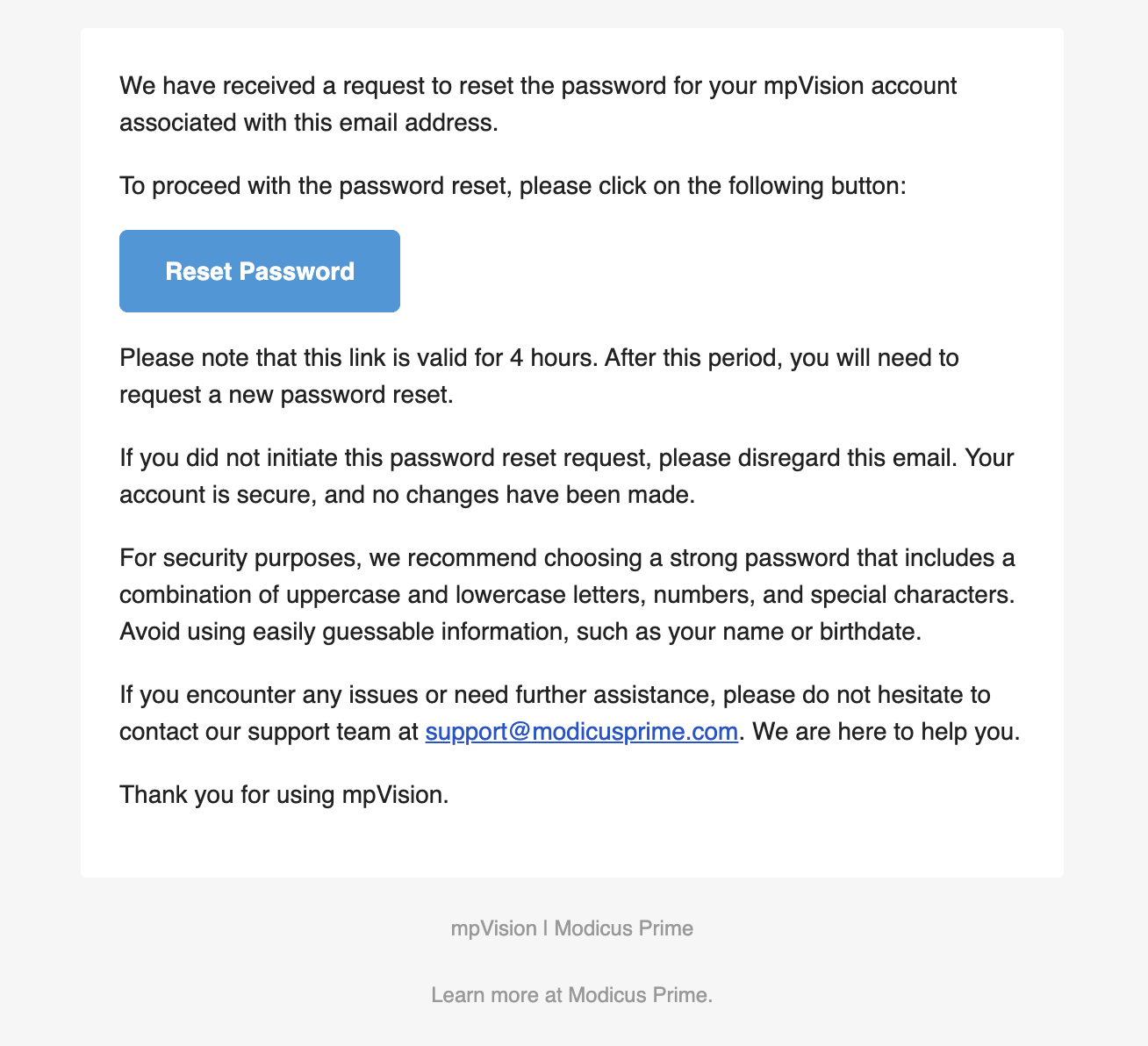
Click "Reset password" button in the email and you will be redirected to the page where you can input your new password.

Input your new password and click "Reset password" button. If your password is successfully reset, you will be promted to navigate to homepage and input your new login credentials.
Reset email expiration
When you request a password reset, you will receive an email with a link to reset your password. This link will expire in 4 hours and you will need to request a new password reset. If you request a new password reset within that time window, the previous email link will expire.
FAQ
How do I log in to the application?
You can log in using your email and password from any of the application pages.
What if I forgot my password?
Click "Forgot your password?" link on the login prompt and follow instructions.
I do not know email address associated with account. How do I log in?
You should contact your company's mpVision administrator to get your email address.
I did not receive password reset email.
Check your spam folder. If you still do not see the email, request a new password reset.
How many failed login attempts are allowed?
mpVision limits the number of failed login attempts to 5.
What happens if I exceed the number of failed login attempts?
If you exceed the number of failed login attempts, you will be locked out of the system for 15 minutes.
How do I unlock my account?
You can unlock your account by resetting your password or waiting 15 minutes before trying to log in.
My account is deactivated. How do I reactivate it?
Only mpVision accounts with staff permission can reactivate your account. Contact your company's mpVision administrator to reactivate your account.