User Manual
Training Sessions
mpVision allows generating AI models using labeled datasets by initiating training sessions
Overview of Training Sessions
Training an AI model involves feeding the algorithm with labeled data and adjusting the model's parameters to minimize the error in predictions. Before feeding images to the model images pre-processing should be done to ensure that the model can learn from the data effectively. mpVision automates the training process by providing a user-friendly interface and encapsulating the training logic in the backend through training sessions.
Starting a Training Session
To start a training session, follow these steps:
- Navigate to training datasets: Click on the "Training" navigation item in the sidebar menu.
- Select the dataset: Click on the dataset name to open the dataset view.
- Start training: Click on the "Start Training" button located in the top left corner of the dataset view.
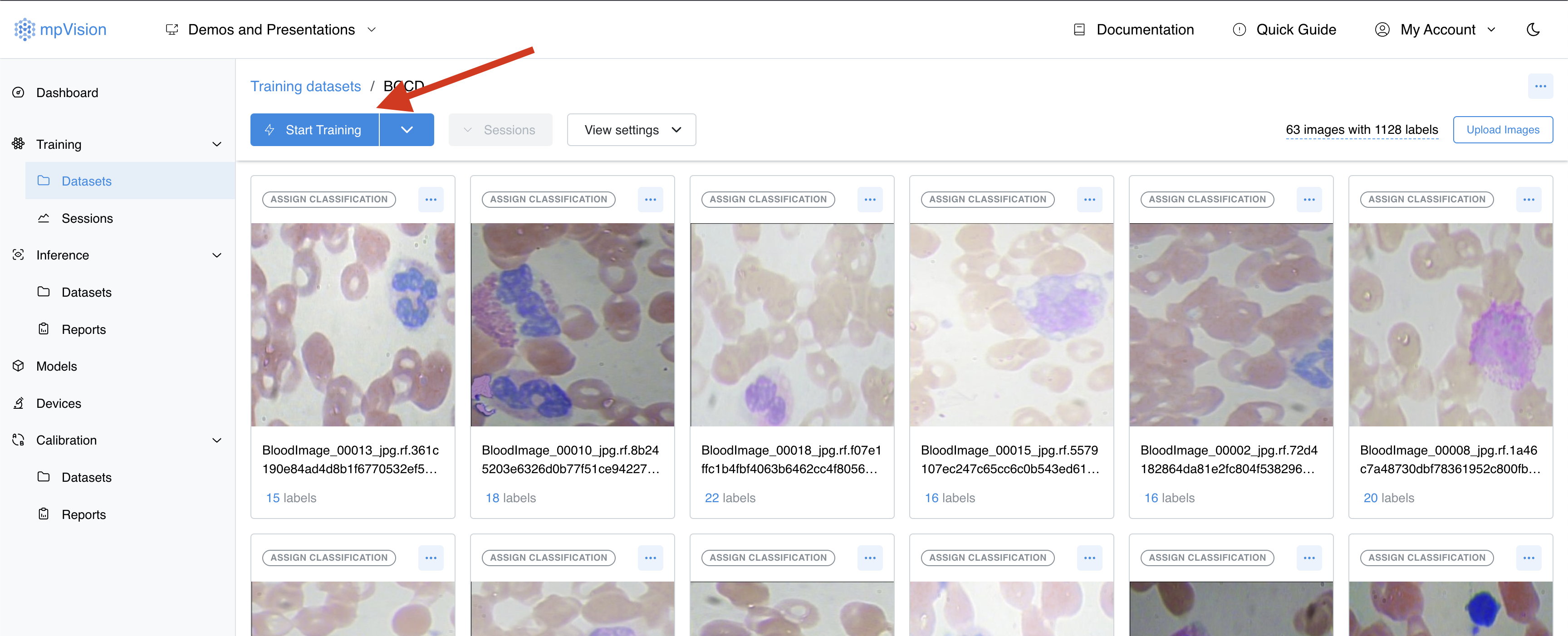
Before starting the training session make sure that the dataset contains labeled images sufficient for training the model, otherwise the system will indicate that the dataset is not ready for training by showing a warning message.
View the Training Session Status
After starting the training session, you can view the training session status by navigating to training sessions page located under the "Training" navigation item in the sidebar menu. The status is shown on the right side of the training session list item.
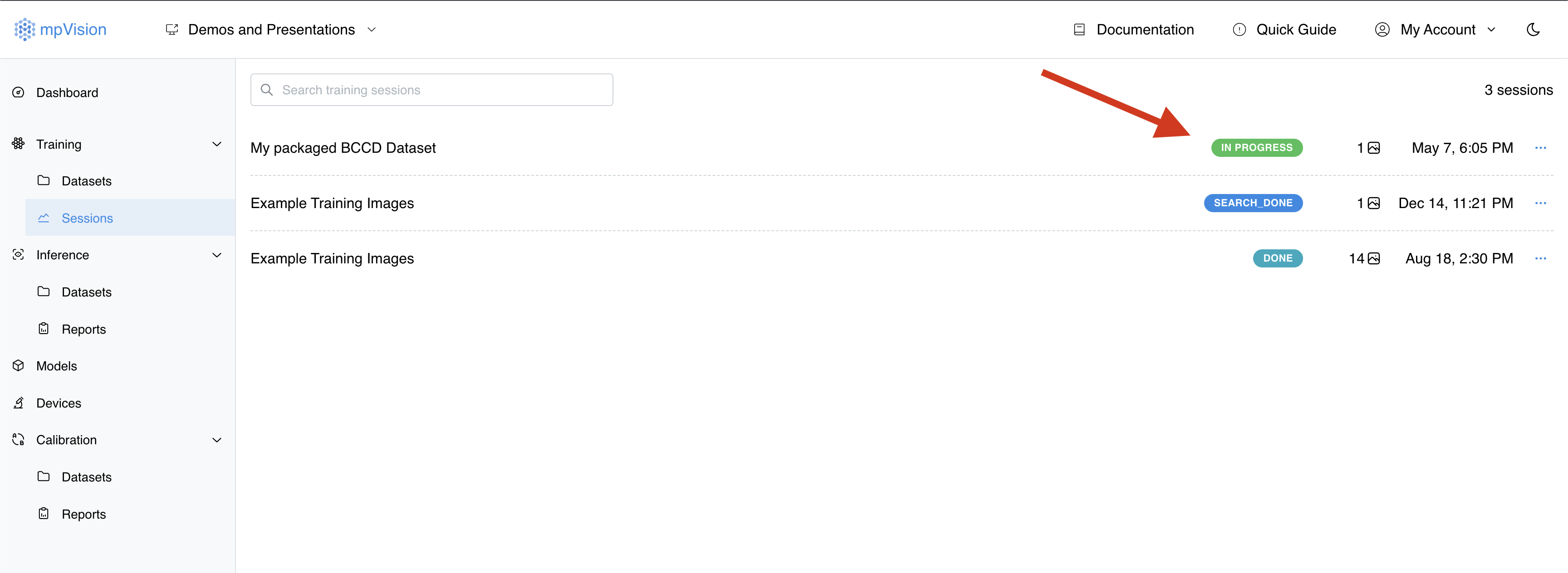
When session is completed the status will change to "Done" and you can view the training session details by clicking on the session name.
Session Details Overview
Training session page contains the following information:
- Session name: The name of the training session. It is the dataset name by default.
- Session status: The status of the training session. It can be "In progress", "Done", "Failed", or "Stopped".
- Session date: The date when the training session was started.
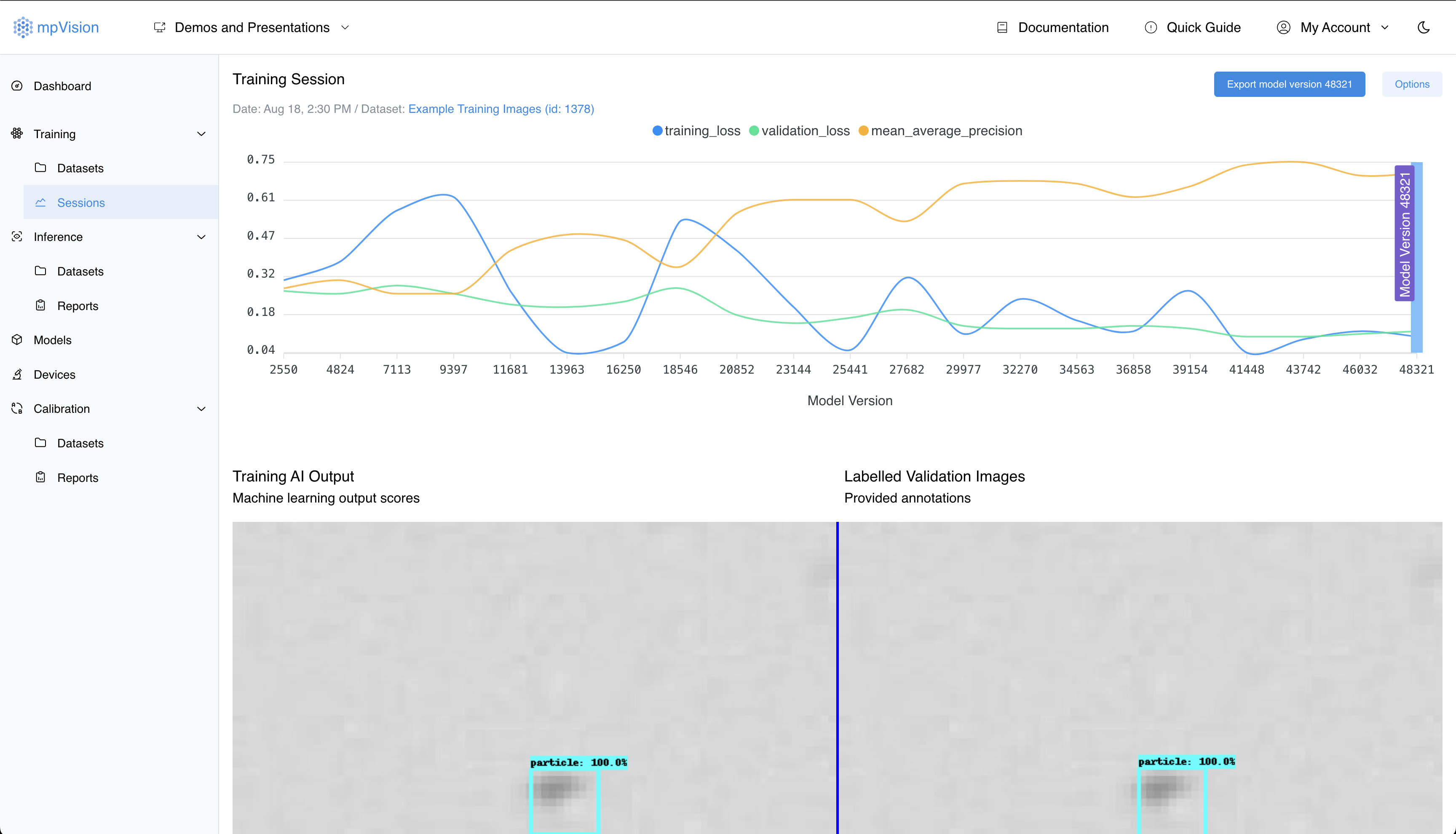
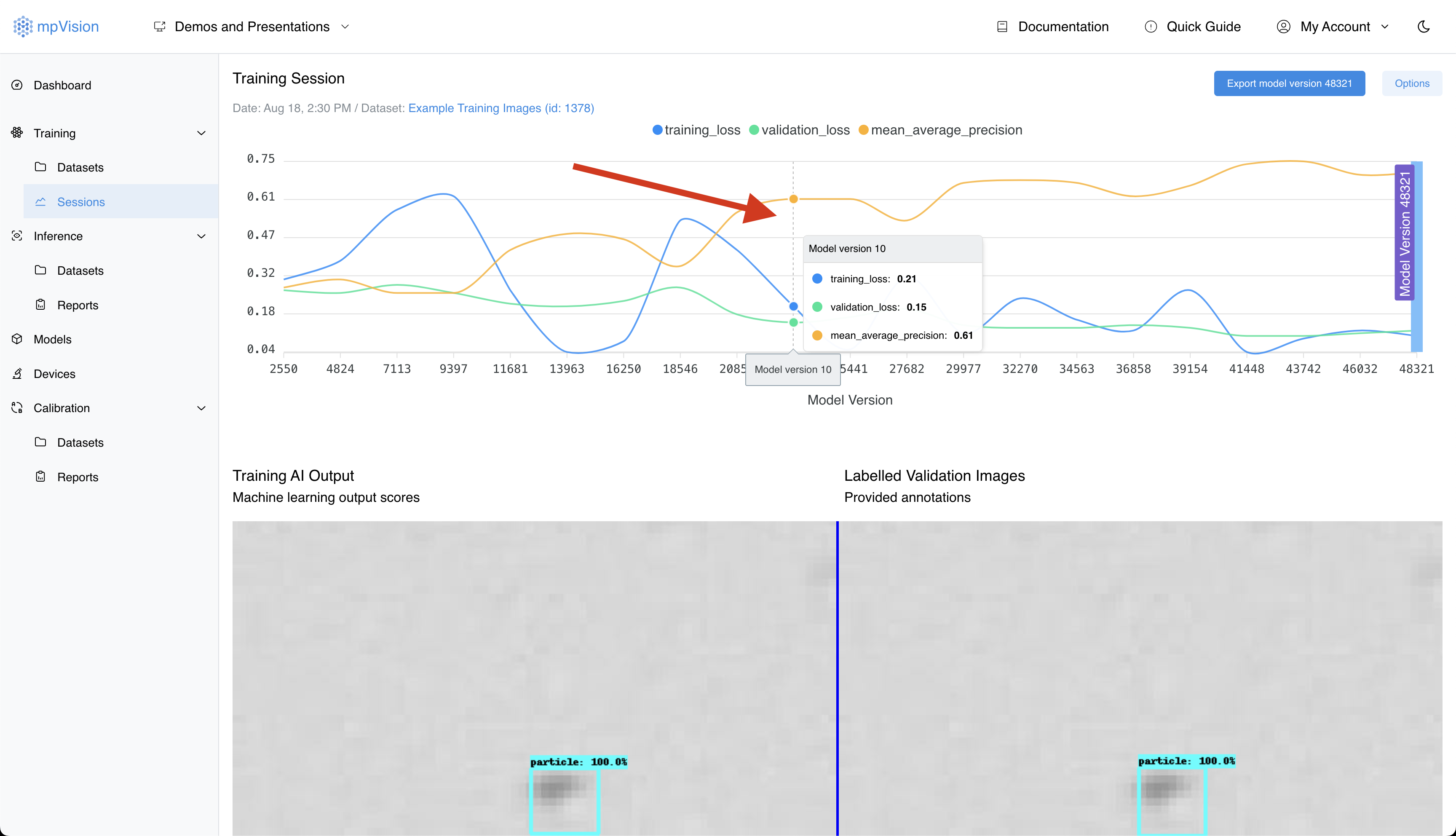
- Loss chart: The top chart displays three profiles: Training Loss, Validation Loss, and Mean Average Precision. The losses represent errors of the AI as it makes predictions – you want them to drop lower and lower as the AI continues to train.
- Validation images: Below the chart, you can see the images that were used for validation during the training session. These images are not used for training the model but are used to evaluate the model's performance.
5-Fold Cross-Validation
5-fold cross-validation is used by mpVision to assess the performance and robustness of a model by splitting the data into distinct subsets, known as folds. This technique is particularly valuable for evaluating any model bias. In this context, 5-fold cross-validation is employed as a bias check, allowing the review different folds, their corresponding metrics, and validation images to gain deeper insights into the model’s overall performance.
What Each Fold Represents
- Data Partitioning: The entire dataset is divided into five equal parts or subsets (folds). Each fold contains a unique set of samples, ensuring no overlap between the folds.
- Training and Validation Process: In each cross-validation iteration, four folds are used to train the model, while the remaining fold serves as the validation set. This process is repeated five times, with each fold acting as the validation set once.
- Metrics and Performance: After each iteration, performance metrics such as precision and loss are recorded. These metrics reflect the model's ability to generalize on unseen data during each validation phase.
Why 5-Fold Cross-Validation is Implemented
- Bias and Variance Trade-off: Evaluating the model on multiple data splits provides a balanced estimate of the model’s performance. It helps to mitigate bias that might occur from using only a single validation set and reduces the variance associated with evaluating the model on different data subsets.
- Robustness Check: This method demonstrates how the model performs across different data portions, highlighting any inconsistencies or weaknesses in predictions. It ensures the model does not overfit or underfit specific subsets of the data.
- Comprehensive Evaluation: Each fold provides insights into how the model might perform in real-world scenarios with varying data distributions. This approach confirms that the model is learning patterns that generalize well, rather than just memorizing the training data.
Interpreting the 5-Fold Cross Validation Results
- Metrics Across Folds: Performance metrics across all five folds can be compared to assess consistency. Consistent performance indicates a robust model, while significant variations suggest potential overfitting, underfitting, or data quality issues in specific folds.
- Validation Images: Reviewing validation images associated with each fold allows users to visually inspect areas where the model performs well or struggles. Consistent failure patterns may indicate areas for further training or refinement.
Conclusion Before Exporting Trained Model
5-fold cross-validation is a comprehensive bias check that highlights the variability and reliability of model performance. It provides a clear view of the model’s capabilities across different data distributions and helps identify potential improvement areas. If certain classes consistently perform poorly, consider adding more data to those classes. For classes with insufficient data, collecting additional real-world samples can significantly improve model stability. Prioritize data collection efforts on underrepresented or challenging classes. If all folds exhibit similar model performance, then proceed to exporting the trained model.
Exporting the Trained Model
After the training session is completed, you can export the trained model by clicking on the "Export" button located in the top right corner of the training session details page. It will open a dialog where you can input the model name that will be used to identify the model in your models list library.
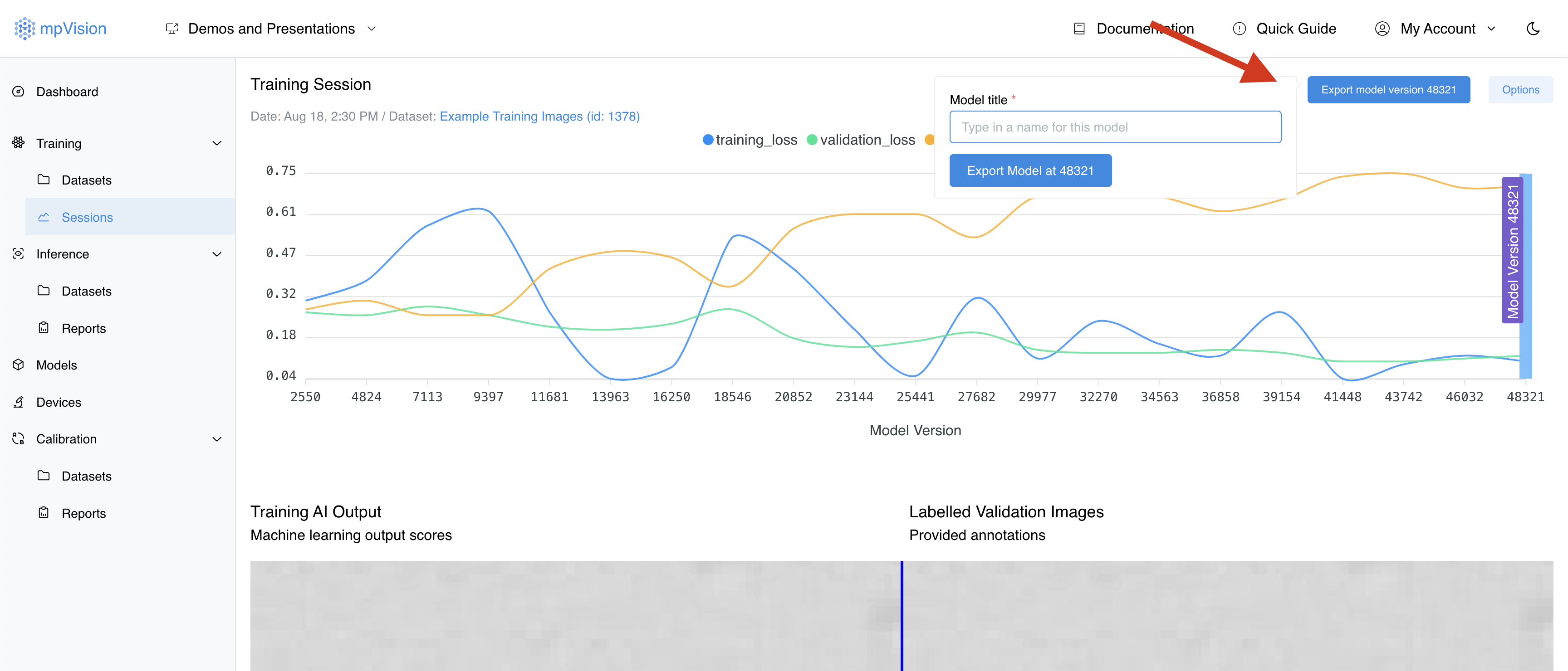
During the training process different versions of models are created and saved in the system. To export a specific model version, click on the chart above the version number represented by X-axis. The export button text will change to the according model version and chart will indicate which version is currently selected. Validation images bellow the chart will also change to reflect the selected model version.
Advanced Training Options
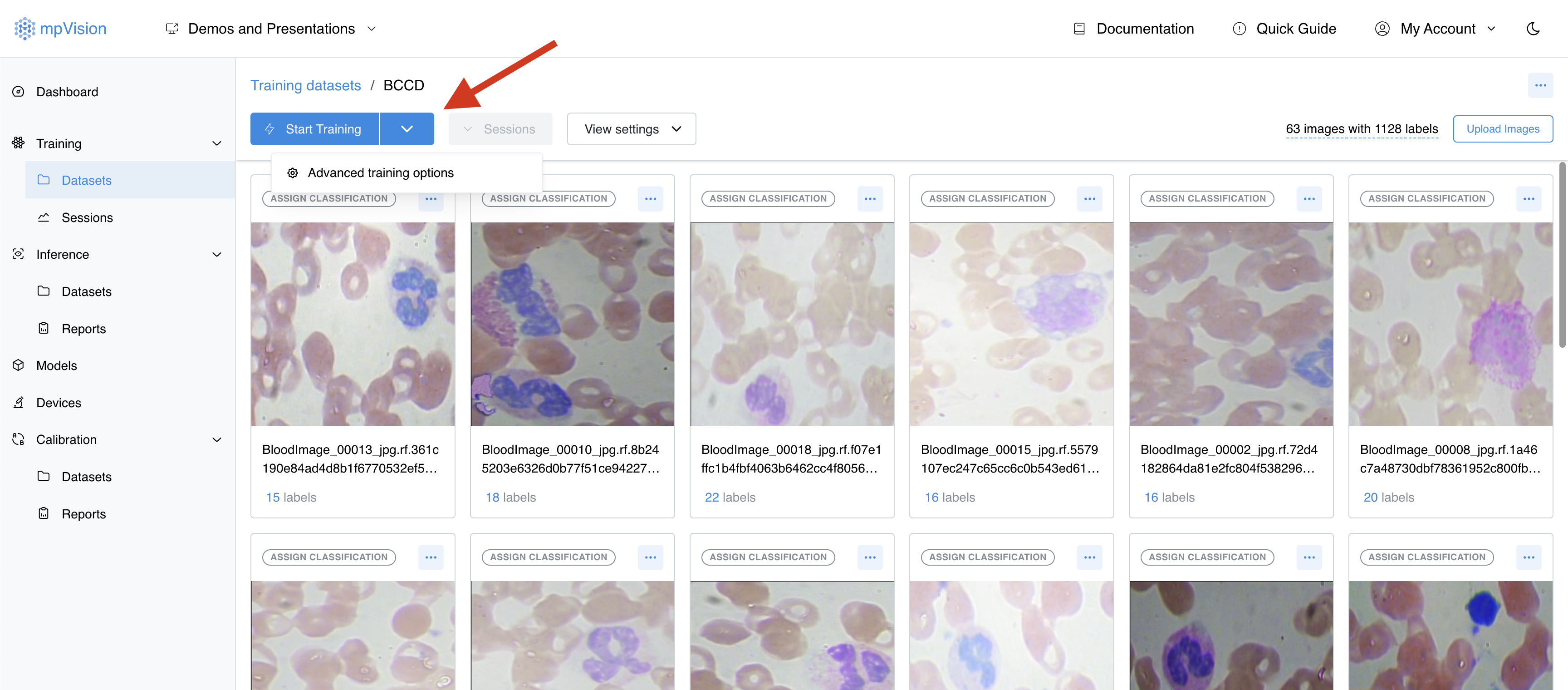
mpVision provides advanced options for training sessions that allow you to customize the training process according to your needs. To start a training session with advanced options, click on the dropdown menu icon located on the right side of the "Start Training" button and select "Advanced options".
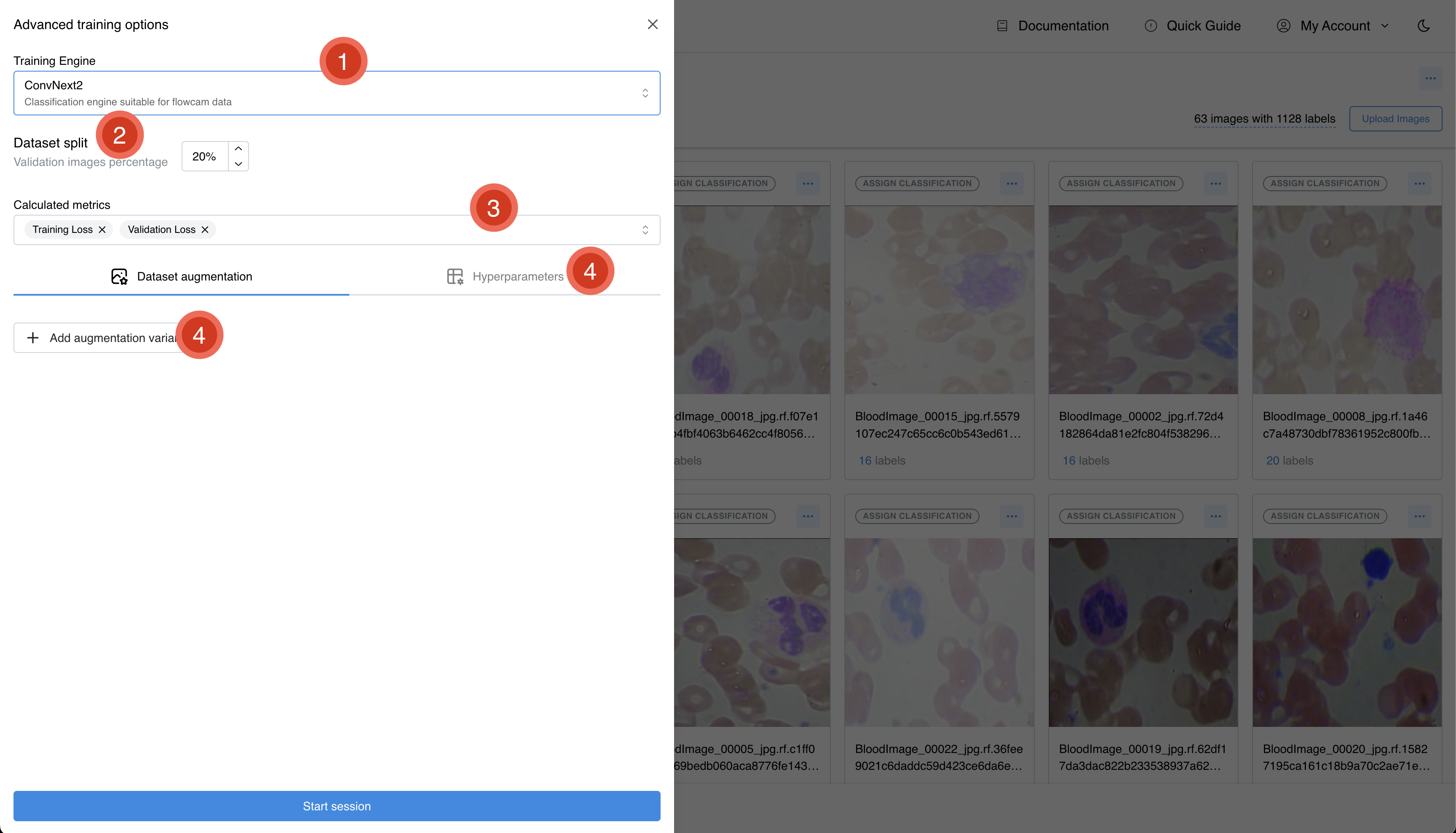
This will open a sidebar dialog form where you can set the following options (see image below the list for the form view):
- Changing the model architecture: You can select a different model architecture from the list of available models. The model architecture defines the structure of the neural network and how it processes the input data.
- Setting the training/validation split: You can adjust the ratio of images used for training and validation. The training set is used to train the model, while the validation set is used to evaluate the model's performance.
- Calculated metrics: You can select the metrics that will be stored during the training process in case you want different then default values.
- Dataset augmentation: You can change or disable the dataset augmentation settings.
- Change model hyperparameters: You can adjust the model hyperparameters to optimize the training process. This includes learning rate, batch size, and other parameters that are applicable to the selected model architecture.
Changing the Model Architecture
The model architecture defines the structure of the neural network and how it processes the input data. mpVision provides a list of available model architectures that you can choose from when starting a training session. To change the model architecture, click on the "Model architecture" dropdown menu and select the desired model.
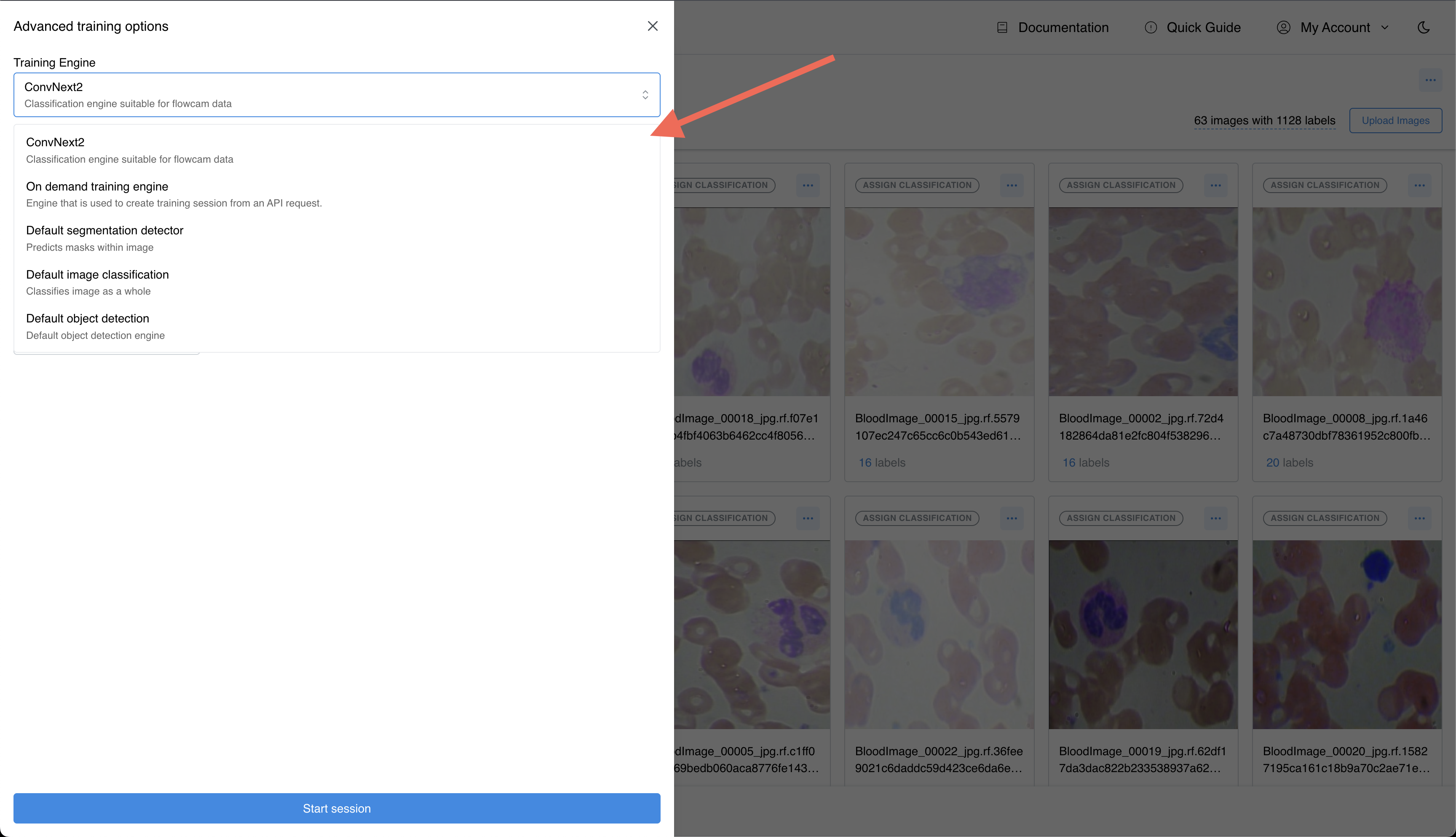
By default mpVision comes with three models: for segmentation, classification, and object detection tasks. You can also implement and deploy your own model using mpVision's SDK.
Setting the Training/Validation Split
The training/validation split defines the ratio of images used for training and validation during the training process. By default, mpVision uses an 80/20 split, meaning that 80% of the images are used for training and 20% are used for validation. To adjust the training/validation split, use the "Training/validation split" slider to set the desired ratio.
Calculated Metrics
mpVision calculates several metrics during the training process to evaluate the model's performance. By default, the system stores the following metrics:
- Training Loss: The error of the model on the training set.
- Validation Loss: The error of the model on the validation set.
- Mean Average Precision (mAP): The average precision of the model on the validation set.
You can select the metrics that you want to store during the training process by selecting one or more items from the "Calculated metrics" dropdown menu.
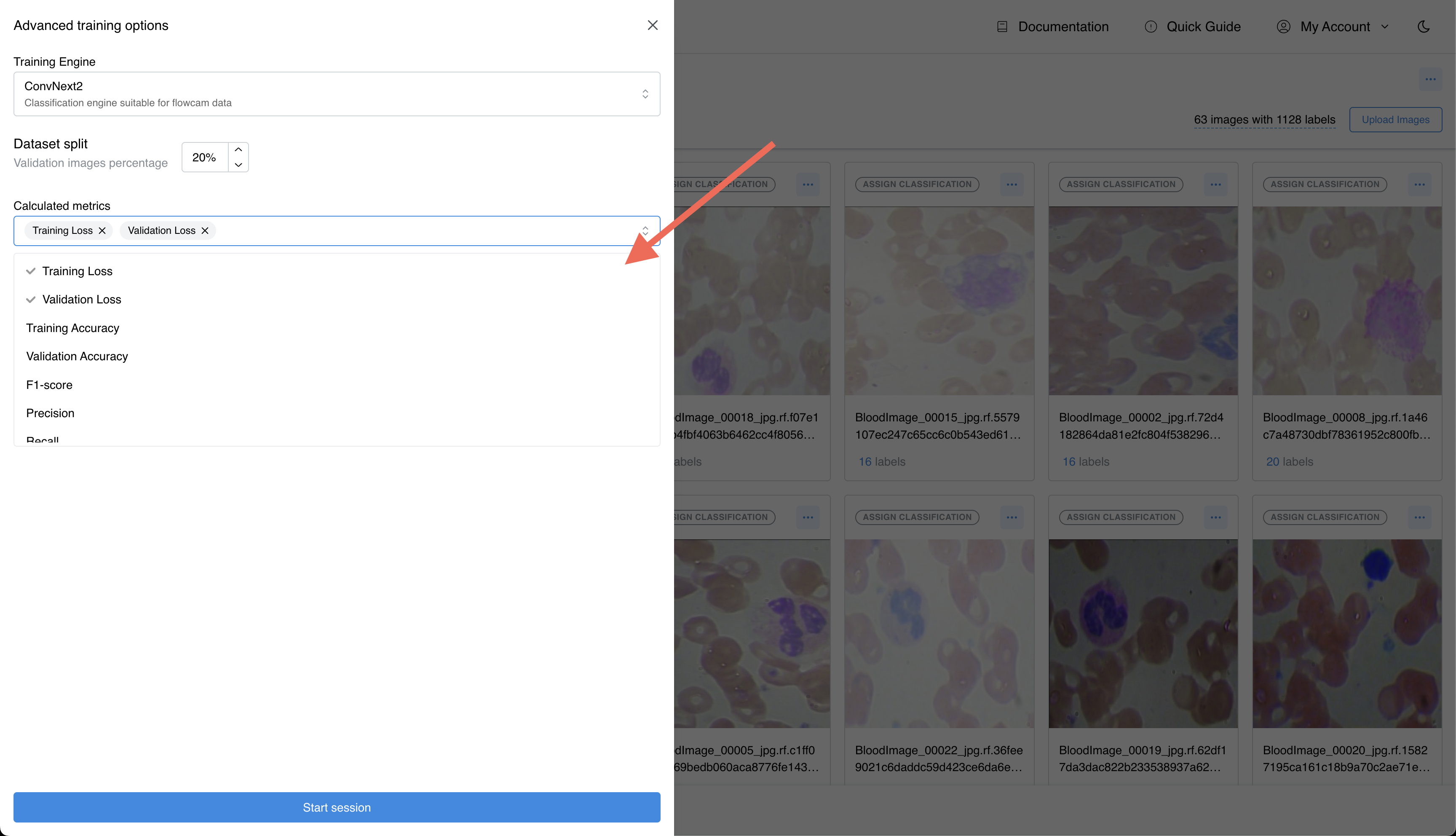
Training metrics are related to the engine
Not all the metrics are available for all the models. When you switch the training engine the metrics that are available for the selected model also will change to reflect the capabilities of the engine.
Dataset Augmentation
Dataset augmentation is a technique used to artificially increase the size of the training dataset by applying transformations to the images. This helps the model generalize better and improves its performance on unseen data.
By default mpVision will select augmentation automatically based on the dataset type and model architecture. In cases when you want to apply custom augmentation settings, click on the "Add augmentation" button located under the "Augmentation tabs".
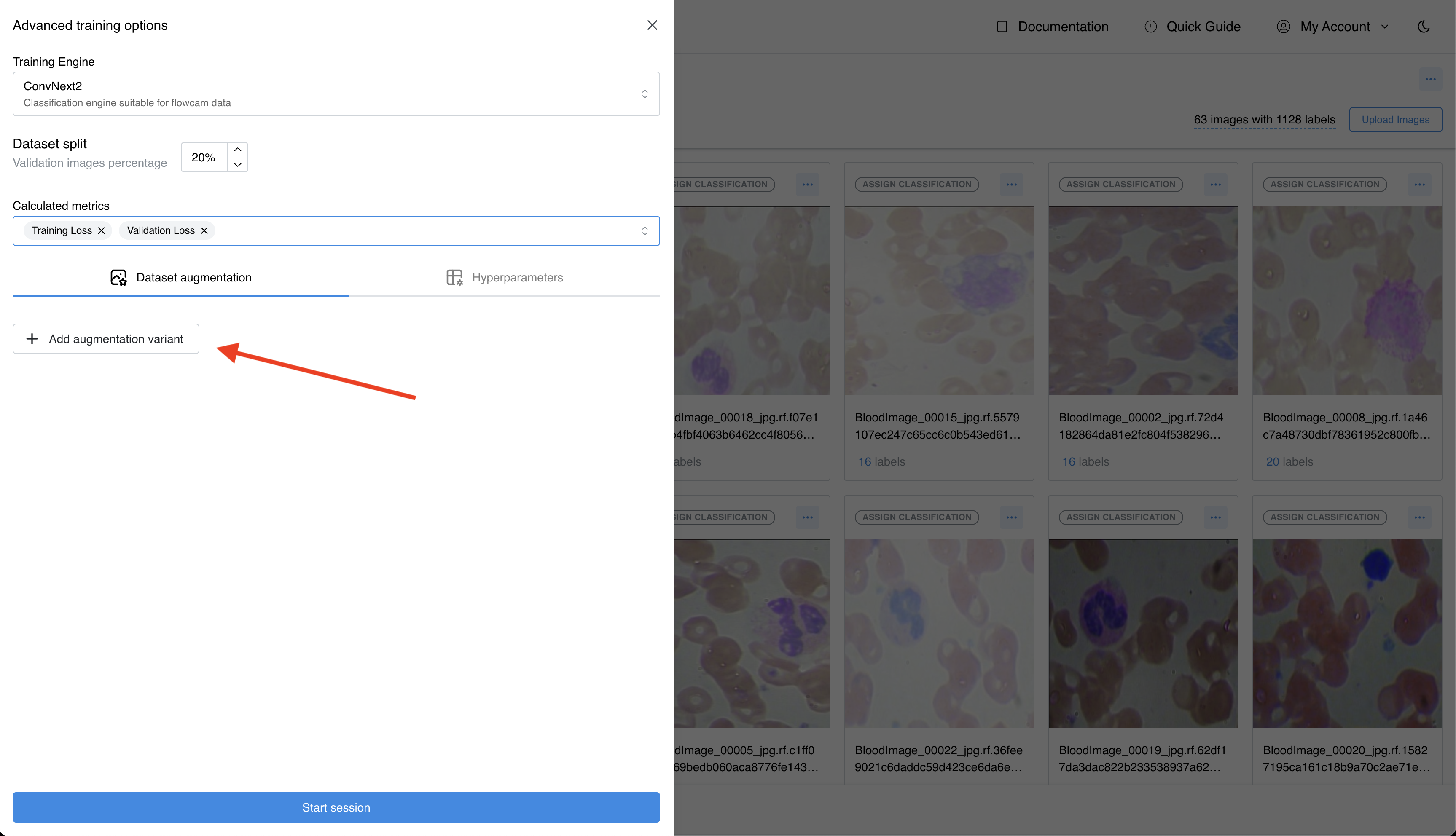
This will open a dialog where you can select the augmenation and see the preview of the image with applied augmentation. You can also adjust the augmentation settings by changing the values in the input slider above the preview image.
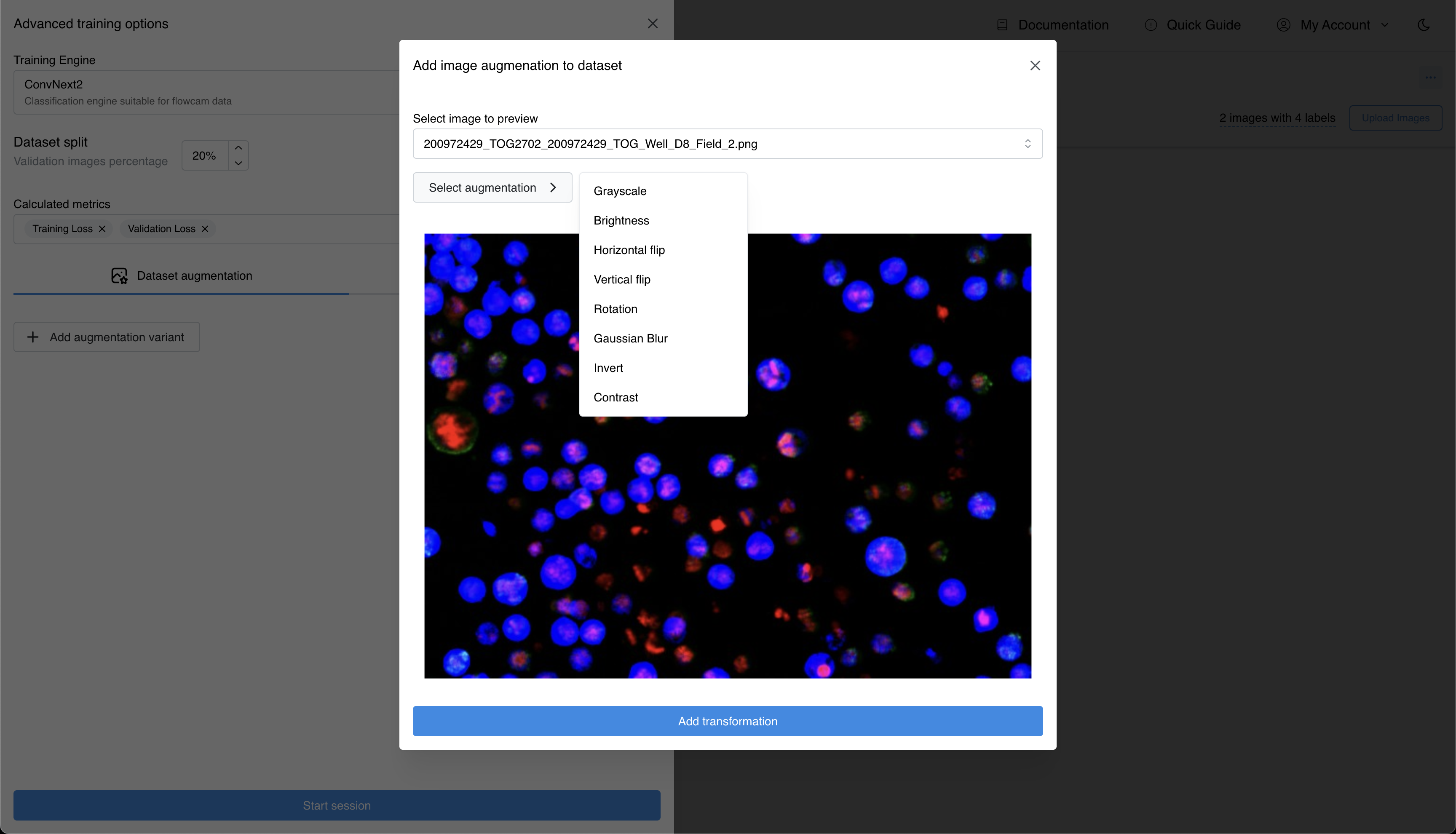
After selecting and adjusting augmentation parameters, click "Add transformation" button to apply the augmentation to the training session. You will see it listed in the "Augmentation tabs" section. You can add multiple augmentations by repeating the process.
To delete an augmentation from the list, click on "X" icon located on the right side of the augmentation item.

Change Model Hyperparameters
Model hyperparameters are the settings that control the learning process of the model. They include parameters such as the learning rate, batch size, and other settings that affect how the model learns from the data. If you want to adjust the model hyperparameters, click on the "Hyperparameters" tab located under the "Advanced options" sidebar dialog.
Hyperparameters are specific to the model architecture and the training engine configurations and will vary depending on the selected model.
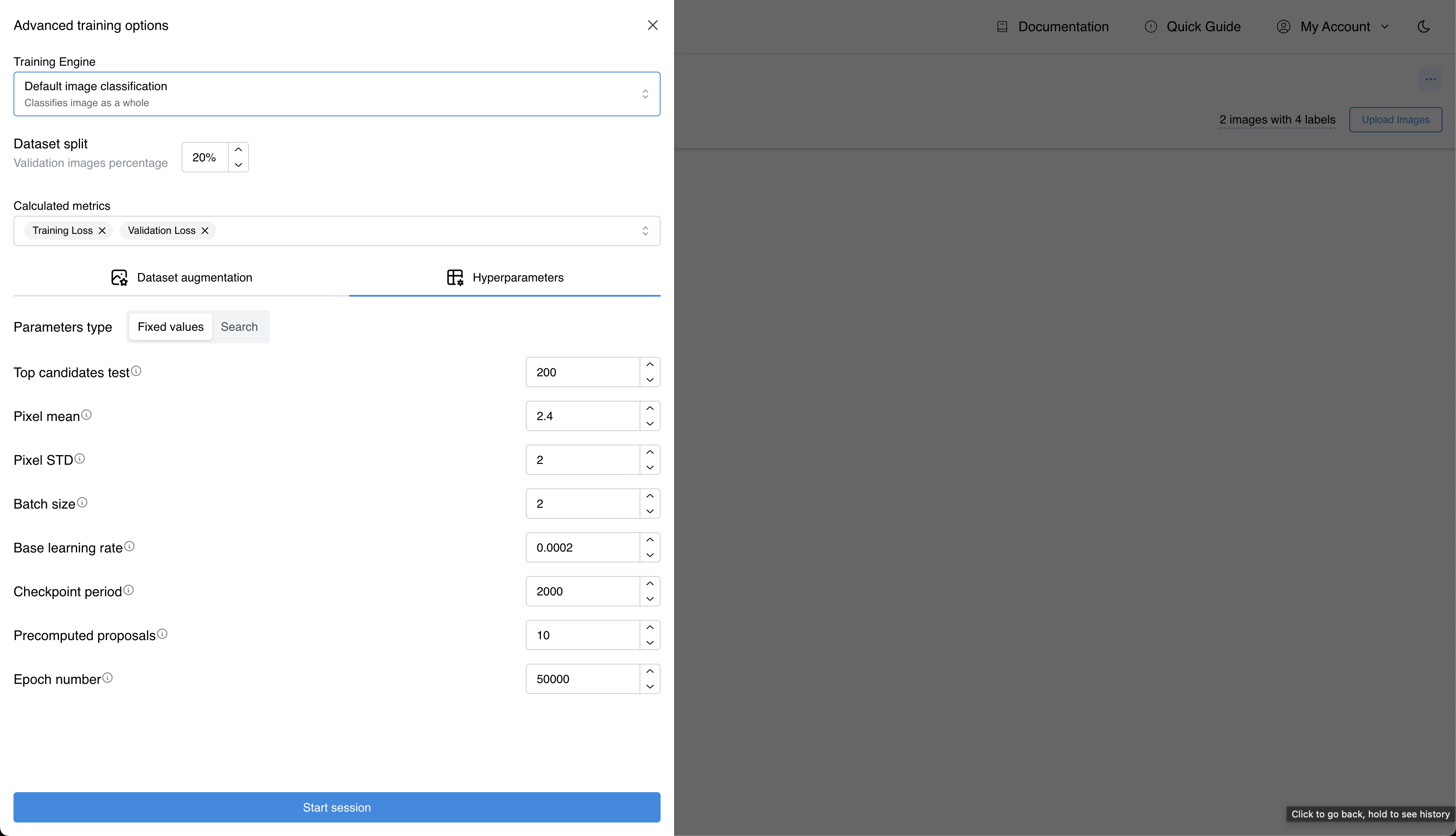
After adjusting the hyperparameters, click on the "Start Training" button to initiate the training session.
FAQ
How long does it take to train a model?
The time it takes to train a model depends on several factors, including the size of the dataset and the complexity of the model. In general, models that come with mpVision are pre-trained on large datasets and require less 6 hours to train a dataset.
Can I stop a training session?
Yes, you can stop a training session at any time by clicking on the "Stop" button located in the top right corner of the training session details page. Stopping a training session will halt the training process and save the model's progress up to that point.
Can I resume a stopped training session?
Yes, you can resume a stopped training session by clicking on the "Continue session" button located in the top right corner of the training session details page. Resuming a training session will continue the training process from where it left off.
Can I export a model during training?
Yes, while training a model you can export the model at any time by clicking on the "Export" button located in the top right corner of the training session details page. The training session is available for preview after about 10 minutes from the start of the training session.
Can I train multiple models simultaneously?
Yes, you can train multiple models simultaneously by starting multiple training sessions. mpVision supports parallel training sessions and scales cloud infrastructure to accommodate computational resources.
What are the minimum requirements for the dataset size and quality?
mpVision requires around 20 fully labeled images per class to train a model effectively.
Is there a limit to the number of training sessions I can run simultaneously?
The limit is based on the installation that you have and the resources available to the system. Please, consult your support team for more information.
Can I integrate the training session outputs directly into my existing systems?
Yes, using the mpVision SDK you can integrate the training session outputs directly into your existing systems. The SDK provides APIs for accessing the trained models, metrics, and other training session outputs.