User Manual
Workspaces
mpVision organizes collections of your data (datasets, models, reports, etc.) into workspaces.
Each workspace has one or more members with an assigned role that defines what actions they can perform with data it contains. This allows you to control access to your data and collaborate with your team members effectively.
Default account workspace
When you create an account, an "Account Workspace" is created for you. This is your own private workspace which can not be shared with other users but items in this workspace can be copied into other workspaces.
This workspace can not be renamed or deleted.
Creating a workspace
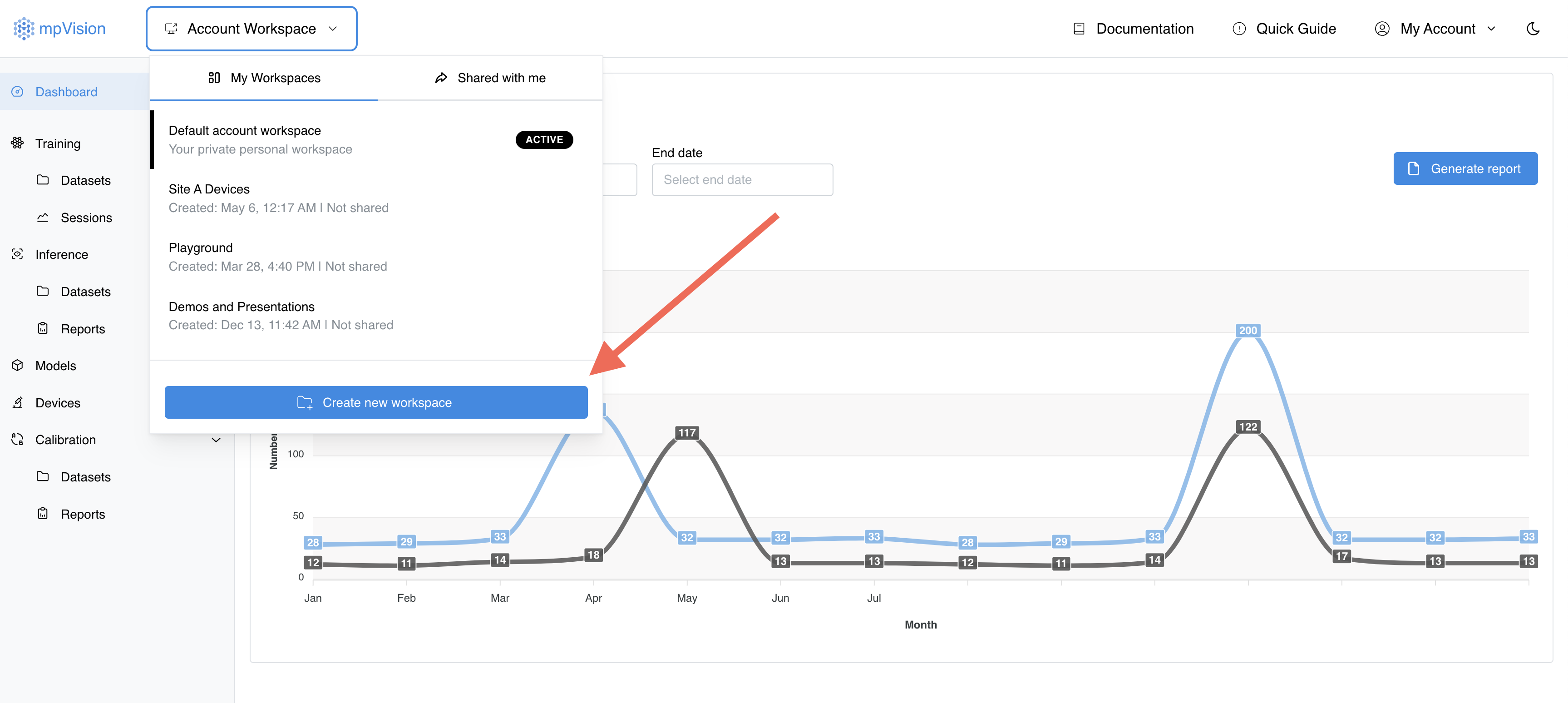
To create a new workspace, click on the "Account Workspace" dropdown in the top left corner of the application and select "Create workspace" button located on the bottom of the dropdown component.
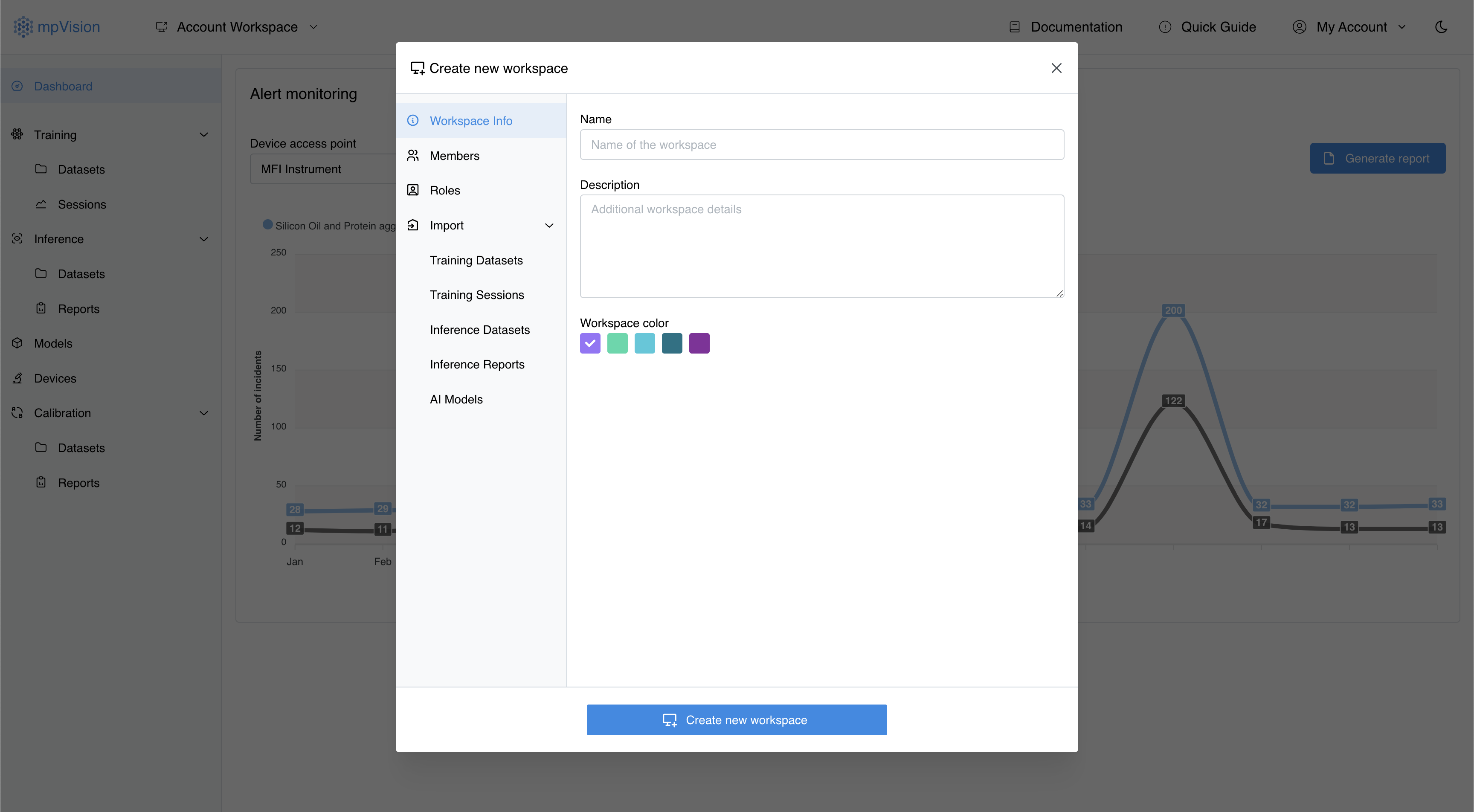
This will open a workspace form window where you can input the name of the workspace and description. Also you can select workspace color that will be used to identify workspace in the workspaces list.
Adding members
You can add members to the workspace by clicking on the "Members" tab in the workspace form. It is located in the left sidebar of the form window. You can invite up to 500 members to the workspace by entering their email addresses in the input field and clicking the "Invite" button. User accounts with provided emails should be registered within system to be added to the workspace. Otherwise, error message specifying that user with provided email does not exist will be shown upon workspace creation.
Every members added to the workspace should have a role assigned to them. There is no role that is assigned by default and you should select one from the dropdown list.

To add a new role click on "New role" button located in the bottom of the roles dropdown list next to the user input field. This will open a form where you can input the name of the role and select permissions that will be assigned to it.
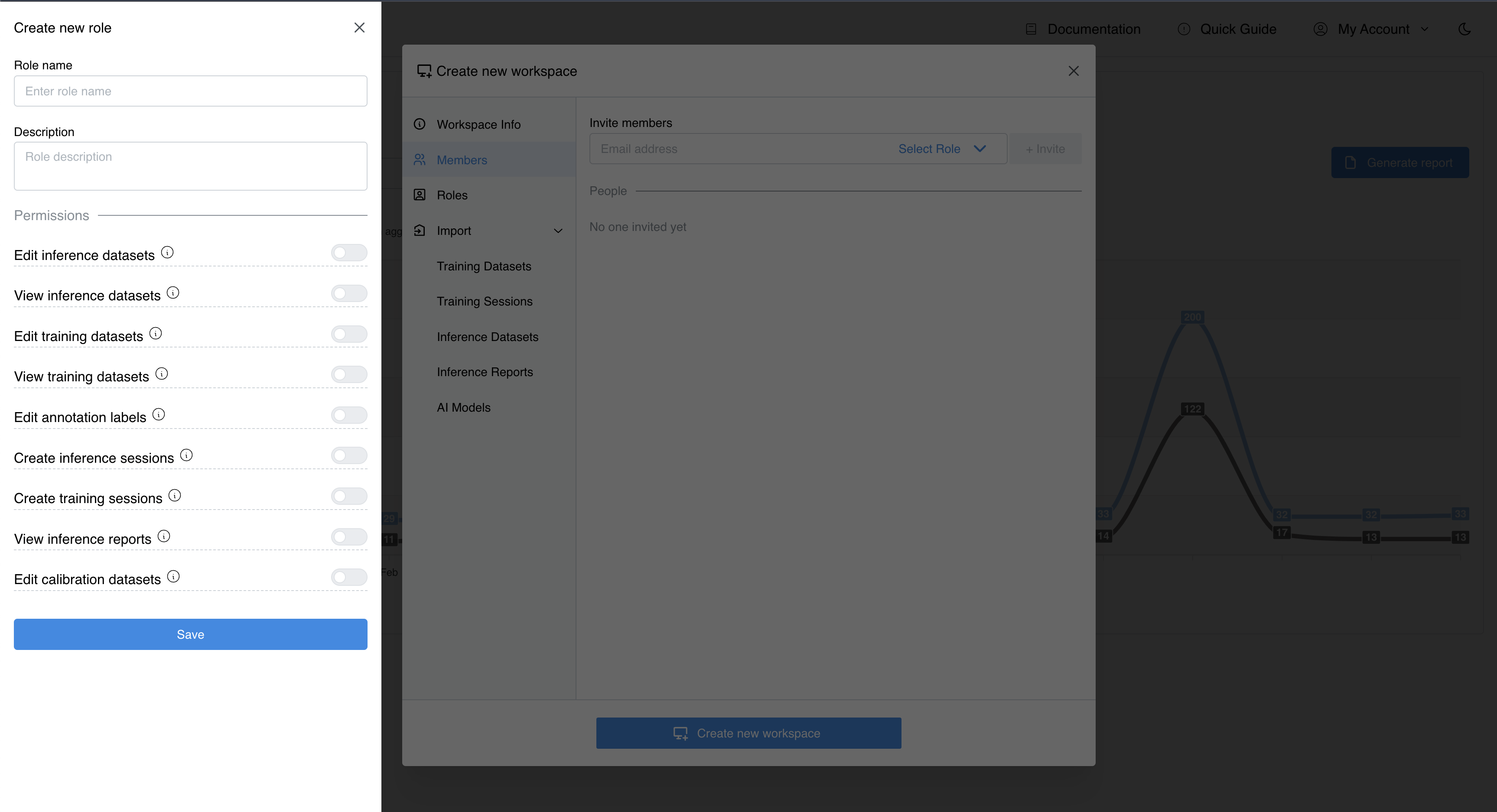
For more information about roles and permissions please refer to the Roles and permissions section of user manual.
Importing data
To import datasets, ML models, inference reports, training and inference sessions from your account workspace select corresponding link in the left sidebar of the workspace form window. Then check the checkboxes next to the items you want to import.
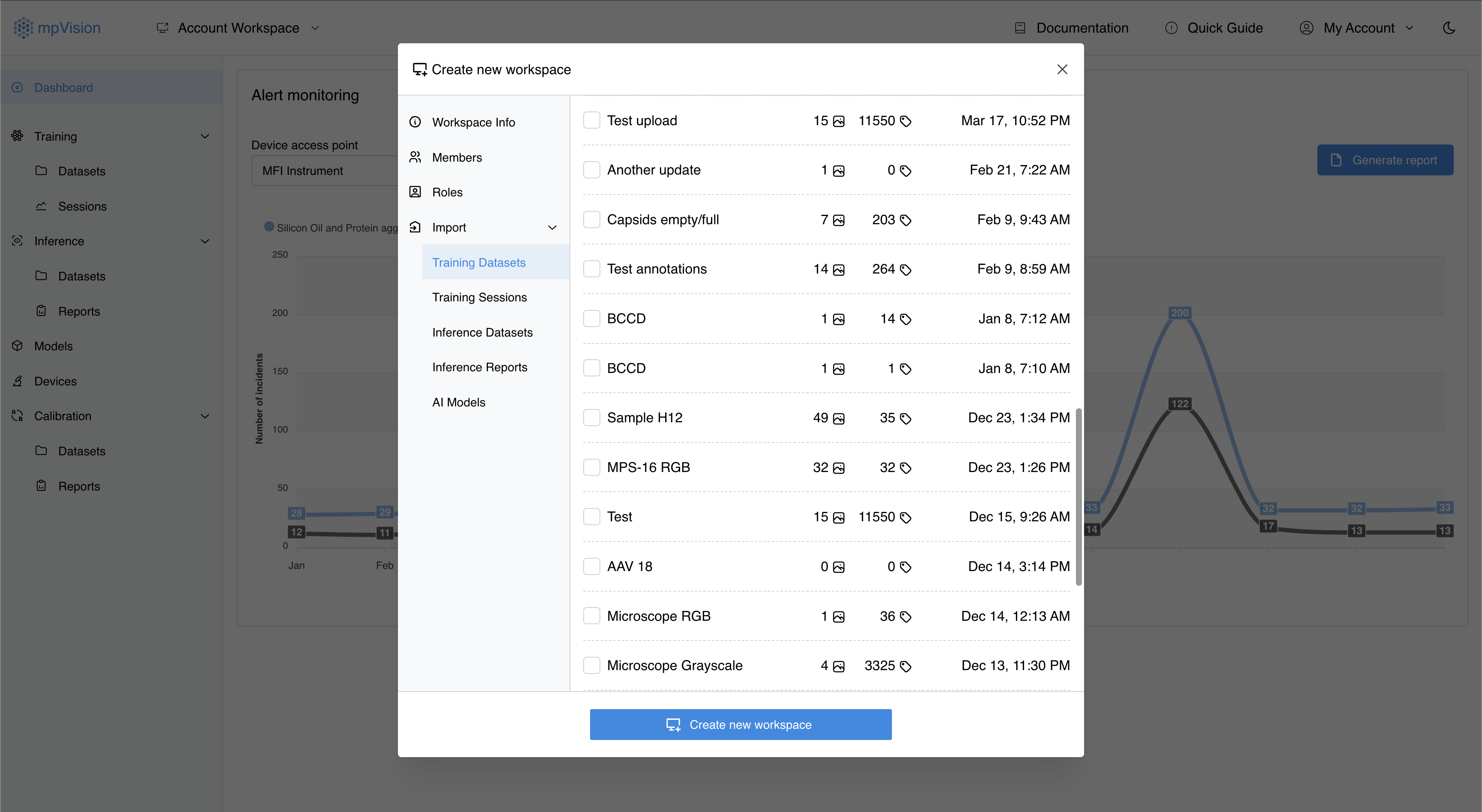
Selected items will be moved from your account workspace to the newly created workspace.
Updating a workspace
To start editing workspace details click on the active workspace name located in the top left corner of the application. By default it will be "Account Workspace". This will open a dropdown component where you can select cogs icon that appears next to the workspace name when mouse is hovered over it.
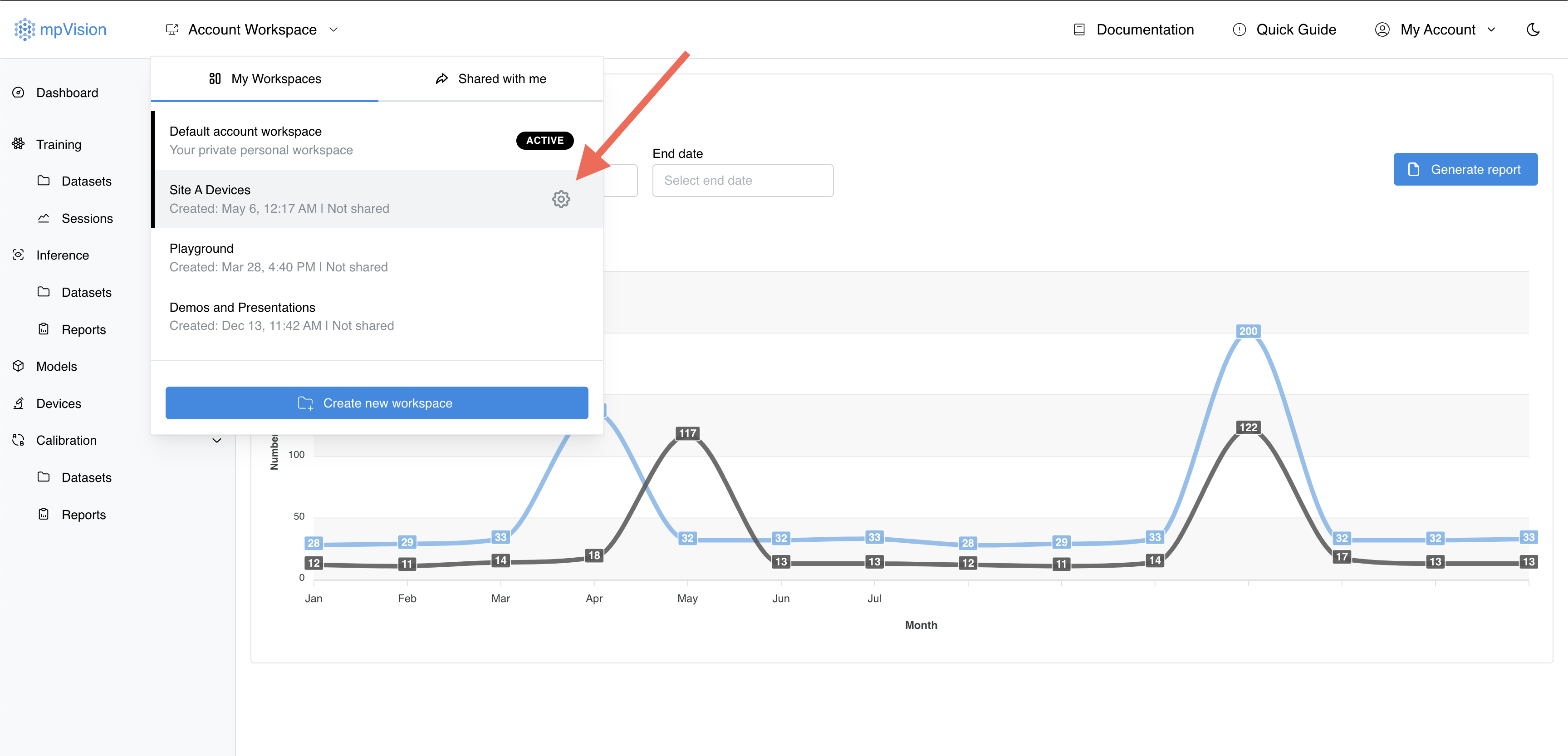
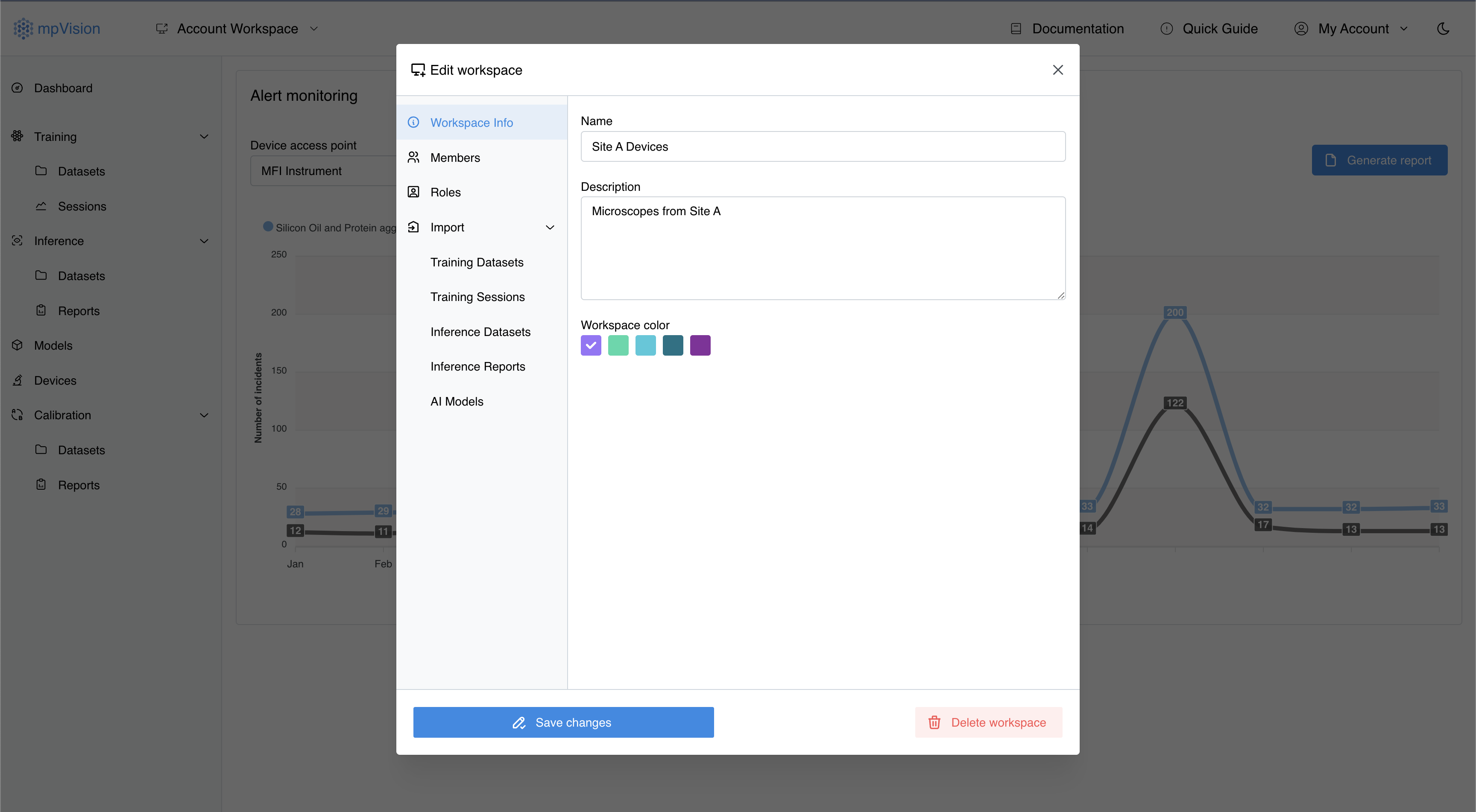
This will open a workspace form window where you can update workspace name, description and color. It will have the same structure as the workspace creation form and the values will be pre-filled with the current workspace details. You can edit them and click "Save changes" button to update workspace details.
Modifying members list
To update members of the workspace click on the "Members" tab in the workspace form window. It is located in the left sidebar of the form window. You can add new members, update roles and remove members from the workspace. The process is similar to the workspace creation form and you can refer to the corresponding section of this document for more detailed information.
Members that are removed from the workspace will lose access to the workspace immediately after changes are saved. Similar way, you can extend existing members access by updating their assigned roles or adding new members to the workspace.
To remove a member from the workspace click on the checkbox next to the member email to select the account and then click on the "Members selected" dropdown button that will appear after selection. This will open a dropdown menu where you can select "Remove" option to remove the selected member from the workspace.

Users will be added to a removal list and you can review the list of members that will be removed from the workspace before saving changes by hovering over question mark next to the "member access will be revoked" text in the header of the members list. If you want to modify that list click on the cancel button located next to the question mark and it will add members back to the workspace.
All the changes will be applied to the workspace members list after you click the "Save changes" button.
Importing data
Similar to workspace creation form, you can import datasets, ML models, inference reports, training and inference sessions from your account workspace to the workspace you are editing. Select corresponding link in the left sidebar of the workspace form window. Then check the checkboxes next to the items you want to import.
Items will be moved from your account workspace to the workspace you are editing.
Deleting a workspace
To delete a workspace click the "Delete workspace" button located in the bottom right corner of workspace edit form. Workspace will be deleted and access to all items in the workspace will be revoked for all members.
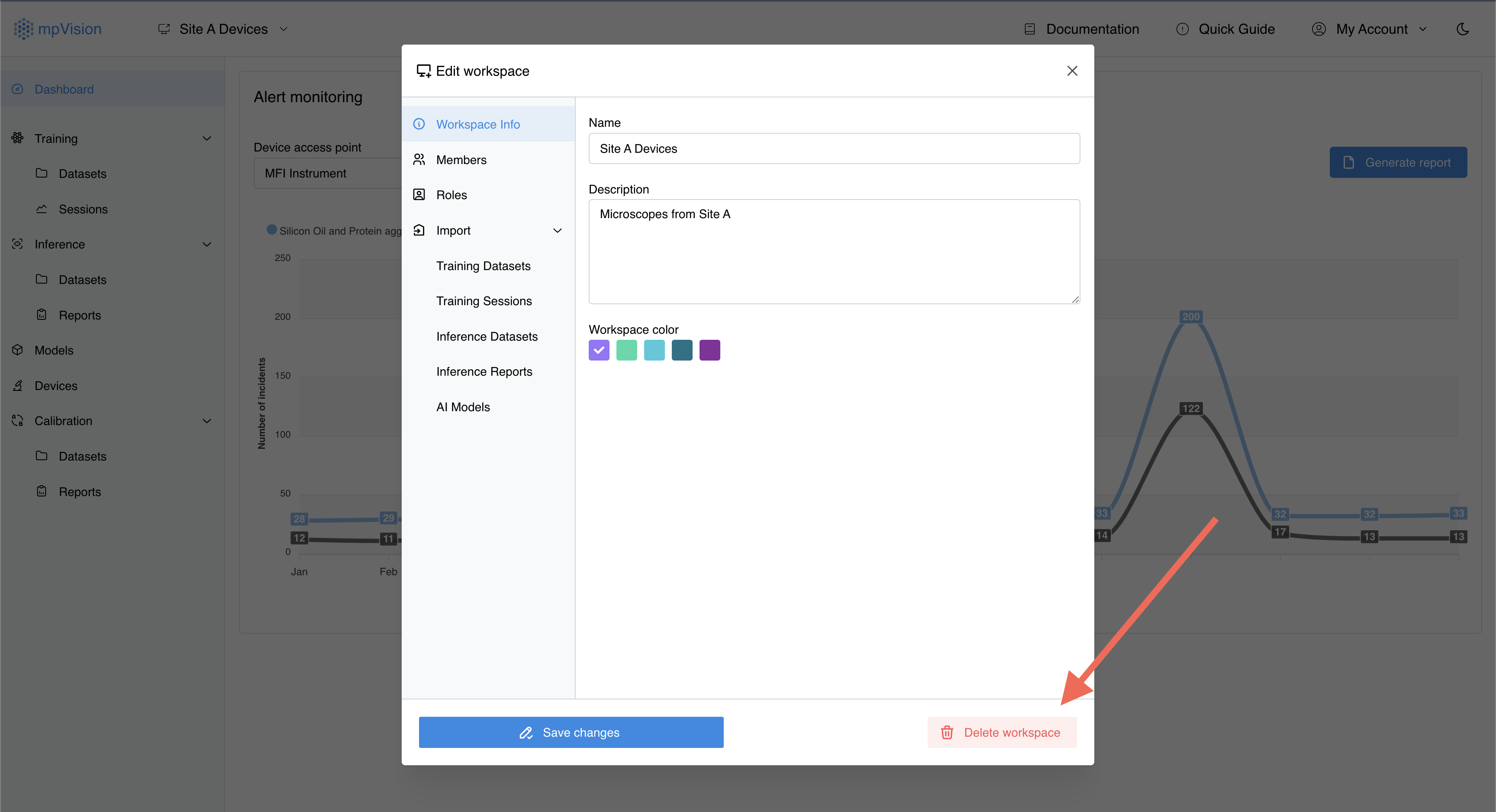
If you are deleting currently active workspace you will be navigated to the account workspace after workspace deletion.
Switching between workspaces
To switch between workspaces click on the active workspace name located in the top left corner of the application. This will open a dropdown component where you can select the workspace you want to switch to.
Active workspace will have "Active" badge next to the workspace name in the dropdown list and the name of the workspace will replace the active workspace name.
Switching to a shared workspace
To switch to a shared workspace you need to be invited to the workspace by the workspace owner. If you are invited to a workspace you will see it in the list of workspaces under the "Shared with me" tab in the workspace dropdown component. Click on the workspace name to switch to it.
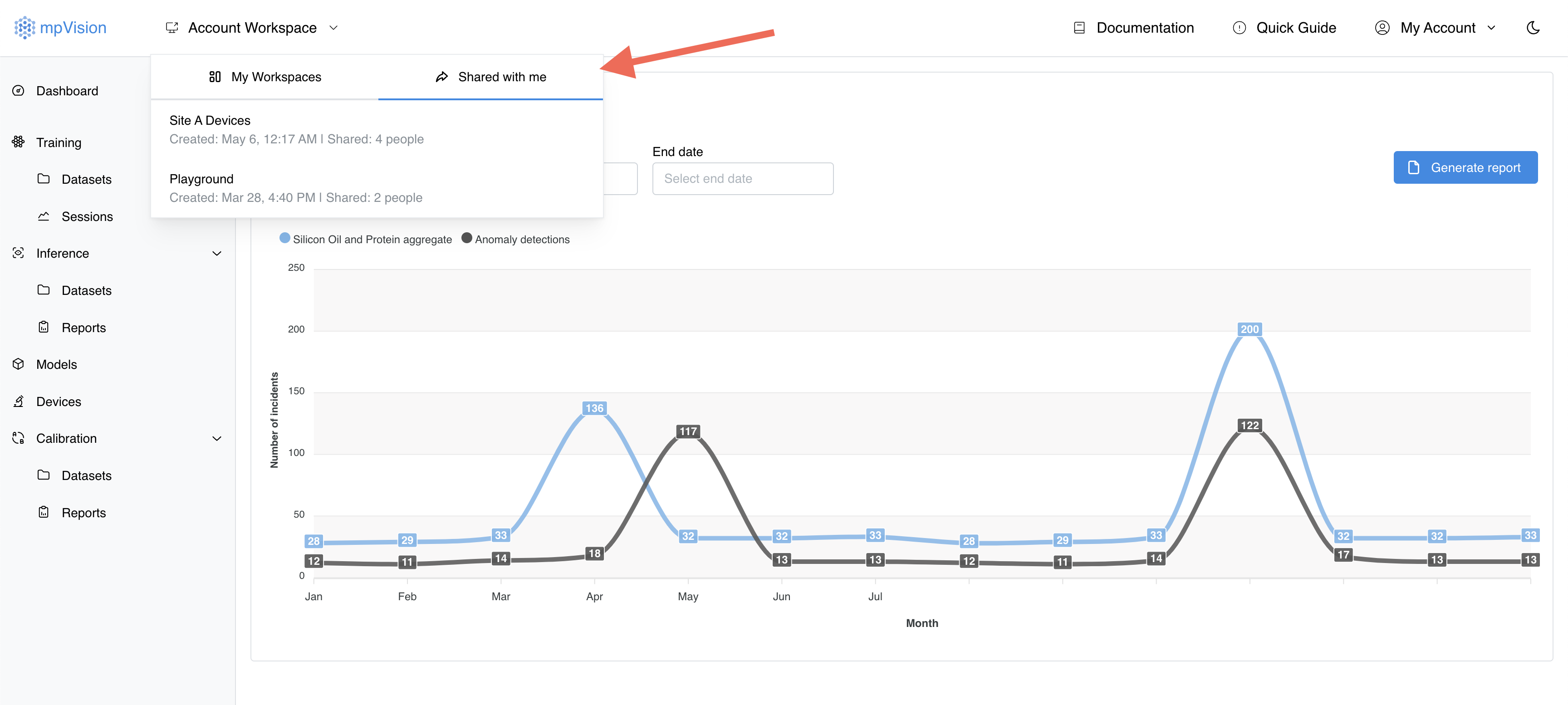
Within the shared workspace you will have access only to the items that are applicable to the permissions assigned to your role in the workspace.
FAQ
What is a workspace in mpVision?
A workspace in mpVision is a collection area for organizing your data such as datasets, models, and reports. It allows for controlled access and collaboration with team members.
How do I create a new workspace?
To create a new workspace, use the "Account Workspace" dropdown in the top left corner of the application and select the "Create workspace" button. Fill in the name, description, and color for the workspace in the form that appears.
Can a workspace be deleted or renamed?
The default "Account Workspace" cannot be deleted or renamed. However, details about other workspaces can be modified.
Which type of data can be imported to a workspace?
You can import datasets of any type, ML models, training sessions, inference sessions and reports.
Can I import data between workspaces?
Currently system allows you to import data only from your default account.
How the data is imported?
When you import data from your account workspace to another workspace, the data is moved from the account workspace to the selected workspace.
Can I copy data from my account workspace instead of moving it?
You can copy datasets by downloading them from the datasets list and uploading them to the workspace datasets list in the workspace you want to copy them to.
How do I remove a member from a workspace?
To remove a member, select their email in the "Members" tab of the workspace form and use the "Members selected" dropdown to choose the "Remove" option.
Can I change my role in a workspace shared with me?
No, you cannot change your role in a shared workspace. Only the workspace owner can change roles of members in the workspace.
How do I switch between workspaces?
To switch between workspaces, click on the active workspace name in the top left corner of the application and select the workspace you want to switch to from the dropdown list.
Can I manage members in a workspace shared with me?
No, you cannot change or modify members in a workspace shared with you. Only the workspace owner can manage members in the workspace regardless of your role.
Can I delete a workspace shared with me?
No, you cannot delete a workspace shared with you. Only the workspace owner can delete the workspace.